
News Monitoring
Industry RSS feeds, reactive content, and your own blog redistribution.
The News section has two tabs:
- Industry News: monitors RSS feeds you follow (TechCrunch, industry blogs, etc.) and suggests reactive posts when something relevant breaks
- My Content: lists your own blog posts from feeds marked as "redistribute" and lets you turn them into social posts
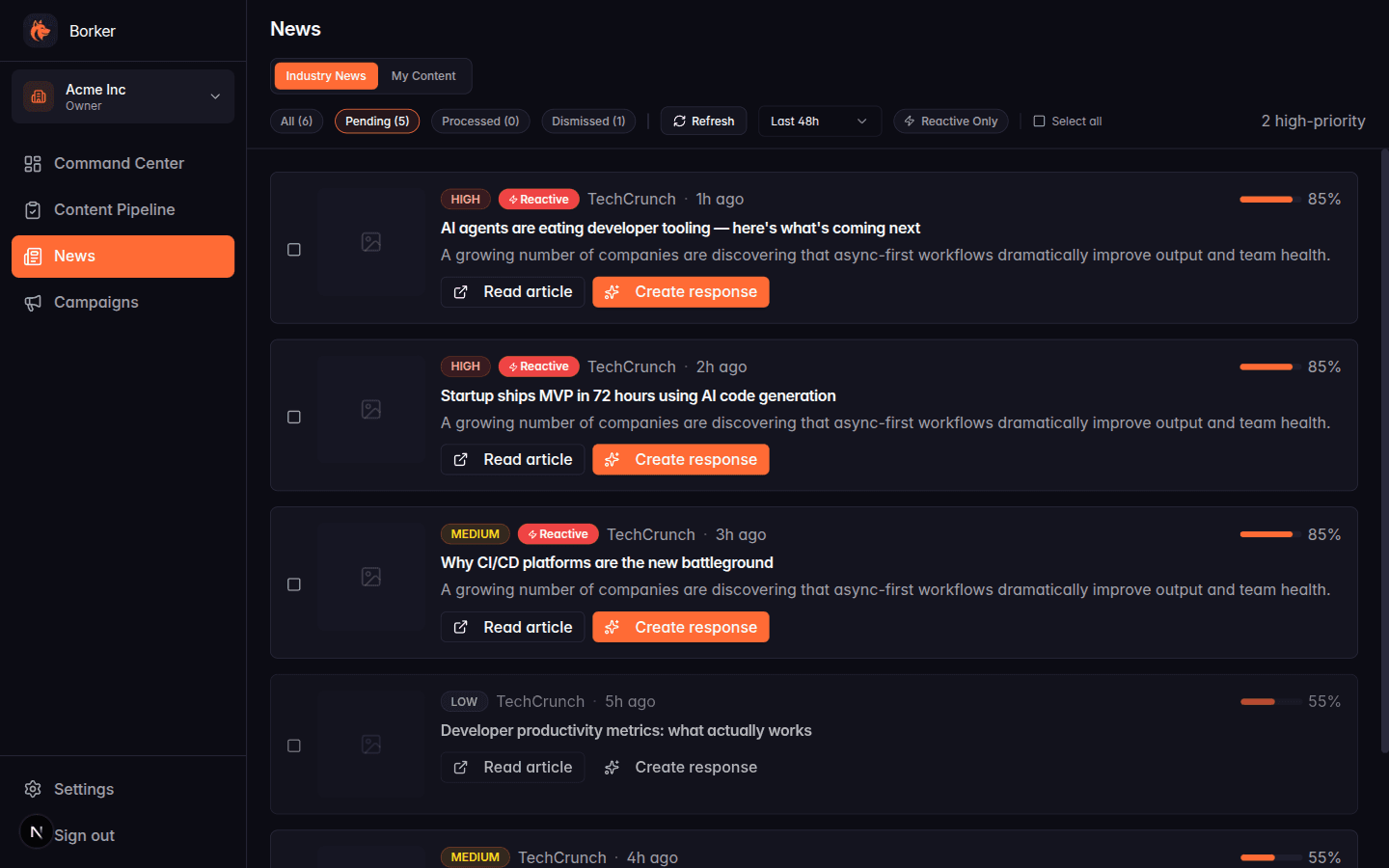
Industry News tab
Status model
Every news article tracked by Borker has one of three states:
| Status | Meaning |
|---|---|
| Pending | New article, no action taken yet |
| Processed | You created a reactive post from it (linked content item exists) |
| Dismissed | You marked it as not relevant |
Filter pills at the top of the page let you jump between All / Pending / Processed / Dismissed. The default view is Pending since those are the articles waiting for your decision.
Article cards
Each article shows:
- Thumbnail (from Open Graph or feed metadata)
- Priority badge: High, Medium, Low (based on relevance score)
- Reactive badge if the article matches your reactive keywords
- Source and time ago
- Title and summary
- Relevance bar (0–100%)
Actions per article
- Read article: opens the original in a new tab
- Create response: generates a draft reactive post linked to this article
- Dismiss: marks it as "not relevant" and hides it from Pending
Bulk actions
Select multiple articles and use the toolbar to:
- Create responses (N): bulk-generate reactive posts
- Dismiss (N): bulk-dismiss low-relevance noise
- Restore (N): on the Dismissed tab, bring articles back to Pending
Sequential generation with a progress counter handles rate limits automatically.
My Content tab
The My Content tab shows blog posts from feeds you've added as redistribute feeds (see News Sources). Each blog post is a source to turn into social posts.
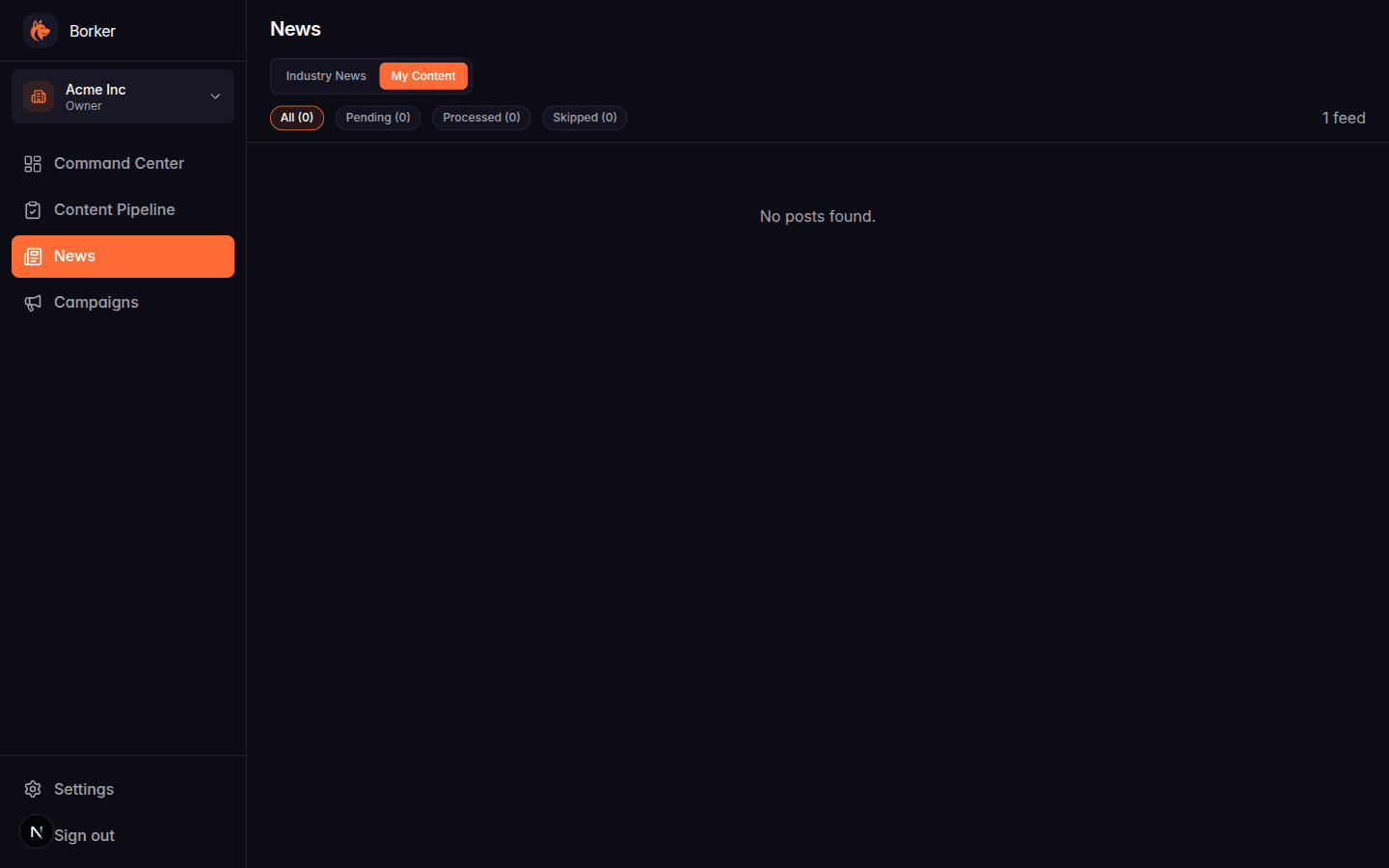
Status model
Similar to Industry News but with four states:
| Status | Meaning |
|---|---|
| Pending | Blog post hasn't been redistributed yet |
| Processed | Social posts were generated from it |
| Skipped | You explicitly said "don't redistribute this one" |
(There's no "Dismissed" — if you don't want to redistribute a blog post, you Skip it.)
Actions per blog post
Click a blog post row to expand it. You'll see:
- The blog description preview
- Any generated content items (if processed) with platform badge, channel, content preview, and pipeline status
- Action buttons:
- Generate Social Posts (pending posts): runs the AI to create posts for each of the feed's selected channels
- Skip (pending posts): marks as processed without generating
- Regenerate (processed posts): deletes the old content and generates again with the same post
- View Original: opens the blog post in a new tab
Bulk actions
Select multiple blog posts and the toolbar updates based on what you picked:
- Pending selected → Generate and Skip buttons
- Processed selected → Regenerate button
- Mixed → both buttons show with separate counts
Sequential generation with progress.
Refreshing news
The Industry News toolbar has a Refresh button that pulls the latest articles from your RSS feeds. It also backfills missing images (via Open Graph) for articles already in the cache.
Refresh happens automatically once a day via the daily workflow if news monitoring is enabled in your settings.
Filters
Both tabs support filtering:
- Industry News: status pills + "Reactive Only" toggle + time range (24h / 48h / 72h / 1 week)
- My Content: status pills + feed filter (when you have multiple redistribute feeds)
Configuring feeds
News feeds are configured in Settings → News. You can add RSS URLs, set them as either reactive or redistribute, and choose which channels each feed targets.
Images from third-party articles are shown in the Borker UI (fair use as a reader interface) but are not auto-attached to generated reactive posts. When you publish a reactive post, the platform's link preview will fetch the og:image naturally.