
Campaigns
Multi-phase content plans designed by AI.
A campaign in Borker is a structured content plan for a specific initiative: a product launch, an event, a themed content series.
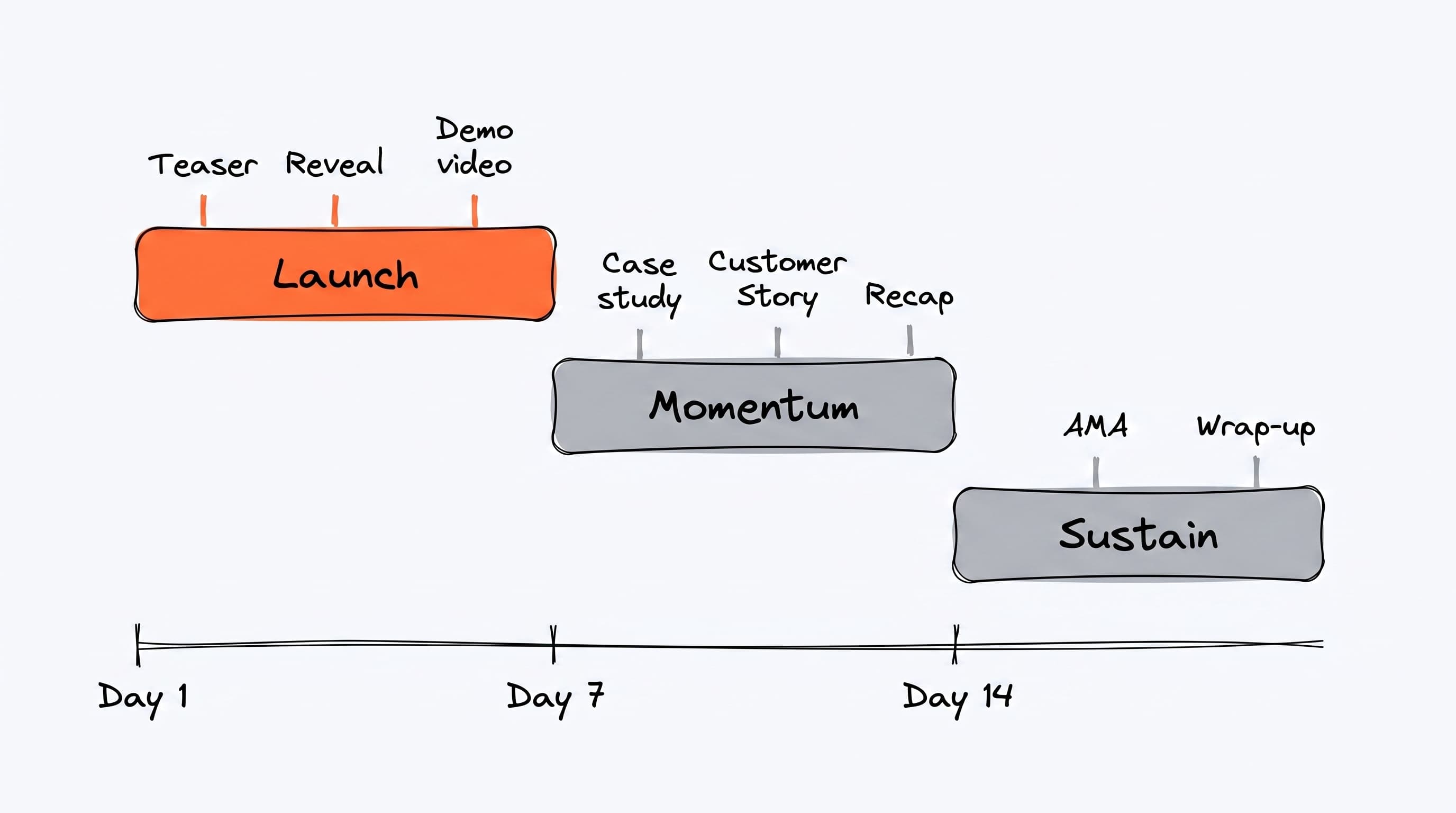
Use a campaign when you need coordinated content across multiple days or weeks — the kind of arc where a teaser, a reveal, a demo, and a recap need to land in the right order. Outside of campaigns, daily generation handles your evergreen rhythm.
Unlike ad-hoc posting, a campaign has:
- A clear start and end date
- One or more phases (Teaser, Launch Week, Sustain, etc.)
- Plan items — individual content pieces across phases
- A shared color so you can identify related content in the Pipeline and Command Center
When to use campaigns
Use a campaign when:
- You're launching something and want coordinated content across multiple days or weeks
- You want phased messaging (tease → launch → sustain)
- You want to track all content for an initiative in one place
Skip campaigns for:
- One-off posts (use the prompt bar on the Command Center)
- Evergreen content (use Topic pools and the daily workflow)
- Reactive responses to breaking news (use the News tab)
Creating a campaign
From the Campaigns list, click + New Campaign. This opens the campaign designer with:
- Brief: describe what the campaign is for in a few sentences
- Templates: quick presets (Product Launch, Awareness, Event, Content Series, Trending Topic) that fill in a starter brief
- Start date: defaults to tomorrow
- Duration: 1 week, 2 weeks, 1 month, or custom
- Color: picks how the campaign shows up in other views
Click Design Campaign and Borker's AI will generate:
- A set of phases spanning the duration (usually 3: Launch, Momentum, Sustain)
- Plan items — individual post ideas distributed across phases
This typically takes 10–20 seconds.
The campaign lifecycle
draft → active → completed
  │
└── archived- draft: plan items exist but haven't been scheduled yet
- active: content is scheduled and publishing
- completed: end_date has passed, all content is out
- archived: soft-deleted (can be restored by support)
Plan item lifecycle
Each plan item in a campaign has its own lifecycle:
pending → approved → generated → scheduled → published- pending: AI created the plan item (title, outline, target date, platform) but no content has been written yet
- approved: you've signed off on the plan — it's ready for content generation
- generated: AI has written the actual post; a linked content item exists in the Pipeline
- scheduled: the content item has a scheduled publish time
- published: it's live
The detail page
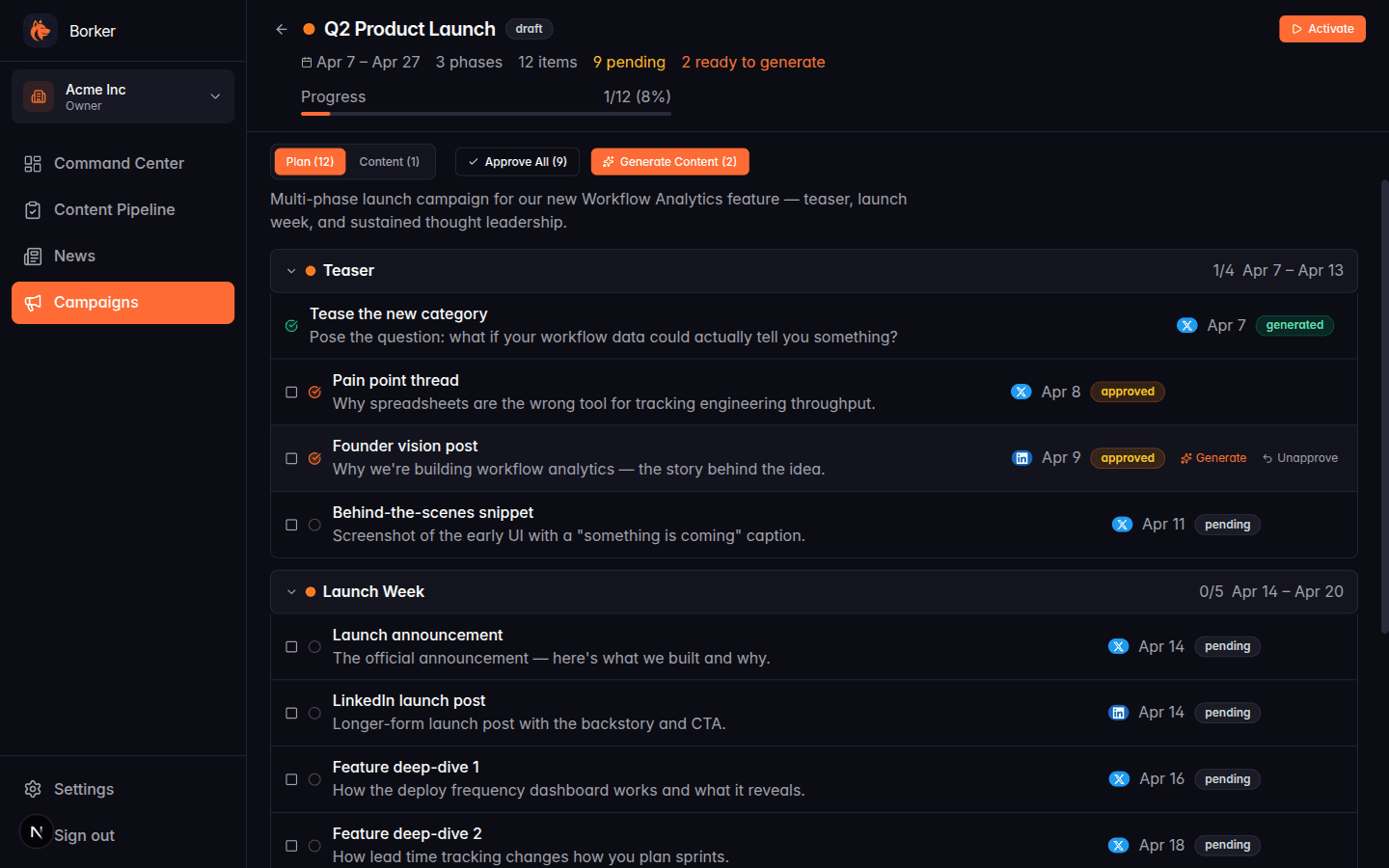
When you open a campaign, you see two tabs: Plan and Content.
Plan tab
Shows all phases and their plan items. Each item shows:
- Status icon: hollow circle (pending), filled orange (approved), filled green (generated), clock (scheduled), double check (published)
- Title and one-line outline
- Platform badge
- Target date
- Status text badge
- Quick actions on hover: Approve, Generate, Unapprove, Edit, Delete
Content tab
Shows the actual content items generated from this campaign's plan — identical to the Pipeline view but filtered to this campaign.
Approving and generating
New plan items start as pending. They need two steps to become real posts:
- Approve them (one-click via Approve All, or individually)
- Generate content for approved items (this calls the AI)
You can approve everything at once with Approve All (N) in the header, then Generate Content (N) to run AI generation on all approved items.
Both operations are bulk-friendly with checkboxes and selection.
Activating a campaign
Once you have some generated content, you can activate the campaign. Activating a draft campaign:
- Takes all plan items in
generatedstate - Schedules their linked content items at their target date/time
- Moves the campaign status to
active - Moves the plan items to
scheduled
The content then publishes automatically at its scheduled time through the regular pipeline.
The current Activate flow is a simple status flip — it doesn't yet validate that you have generated content or schedule it automatically. That's on the roadmap. For now, use the Pipeline's Scheduled tab to confirm your campaign content is queued up correctly after activating.
Editing a campaign
Campaigns can be edited after creation:
- Name, description, color, dates: via the API, UI coming soon
- Plan items: via the Plan tab quick actions, UI coming soon
- Regenerate plan: re-run the AI designer with the same brief (deletes pending items and regenerates them)
Deleting / archiving
Campaigns can be archived (soft-deleted). Use the API or contact support — UI coming soon.
Common patterns
Product launch campaign
Use the Product Launch template. A typical 2-week launch has:
- Phase 1 — Teaser (days 1–4): 3–4 posts hinting at the new feature without revealing it
- Phase 2 — Launch Week (days 5–10): announcement, feature deep-dives, customer quotes, demo threads
- Phase 3 — Sustain (days 11–14): retrospectives, thought leadership, what's next
Themed content series
Use a custom brief like "A 10-post thread series on engineering culture, one post per weekday for two weeks." The designer will spread items across phases and vary content types.
Event promotion
Use the Event template. Phase 1 is "Announce", Phase 2 is "Build excitement", Phase 3 is "Day-of and afterglow".