
Content Pipeline
Four tabs that move content from draft to published.
The Pipeline is where every piece of content in Borker lives during its lifecycle. It doesn't matter how a draft got created (automation, prompt bar, campaign, redistribution, manual reaction) — it always ends up here.
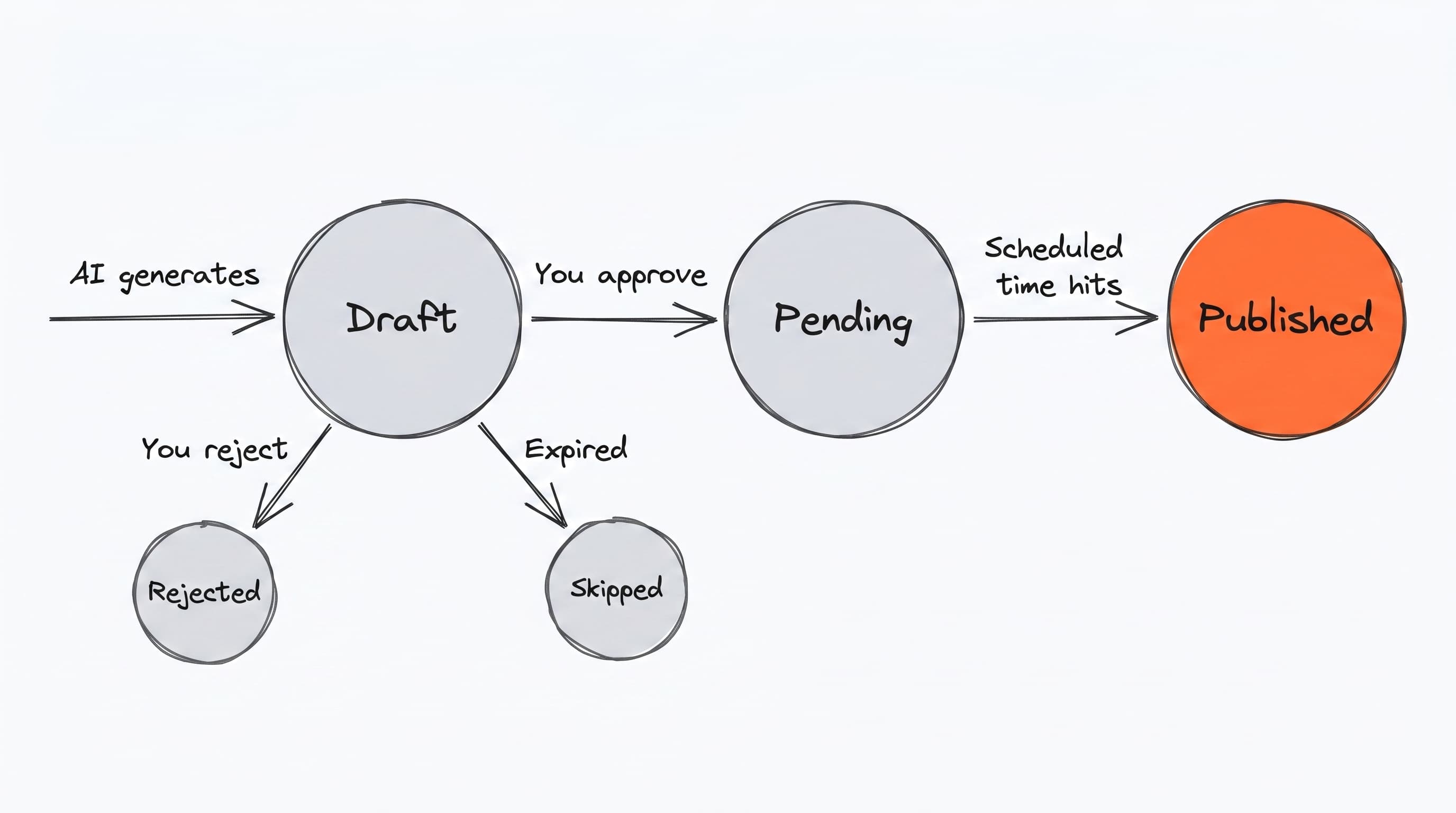
The four tabs map directly onto the four states a piece of content can be in. Moving between tabs is always an explicit action — Approve, Schedule — which is what keeps a human in the loop without making you babysit every draft.
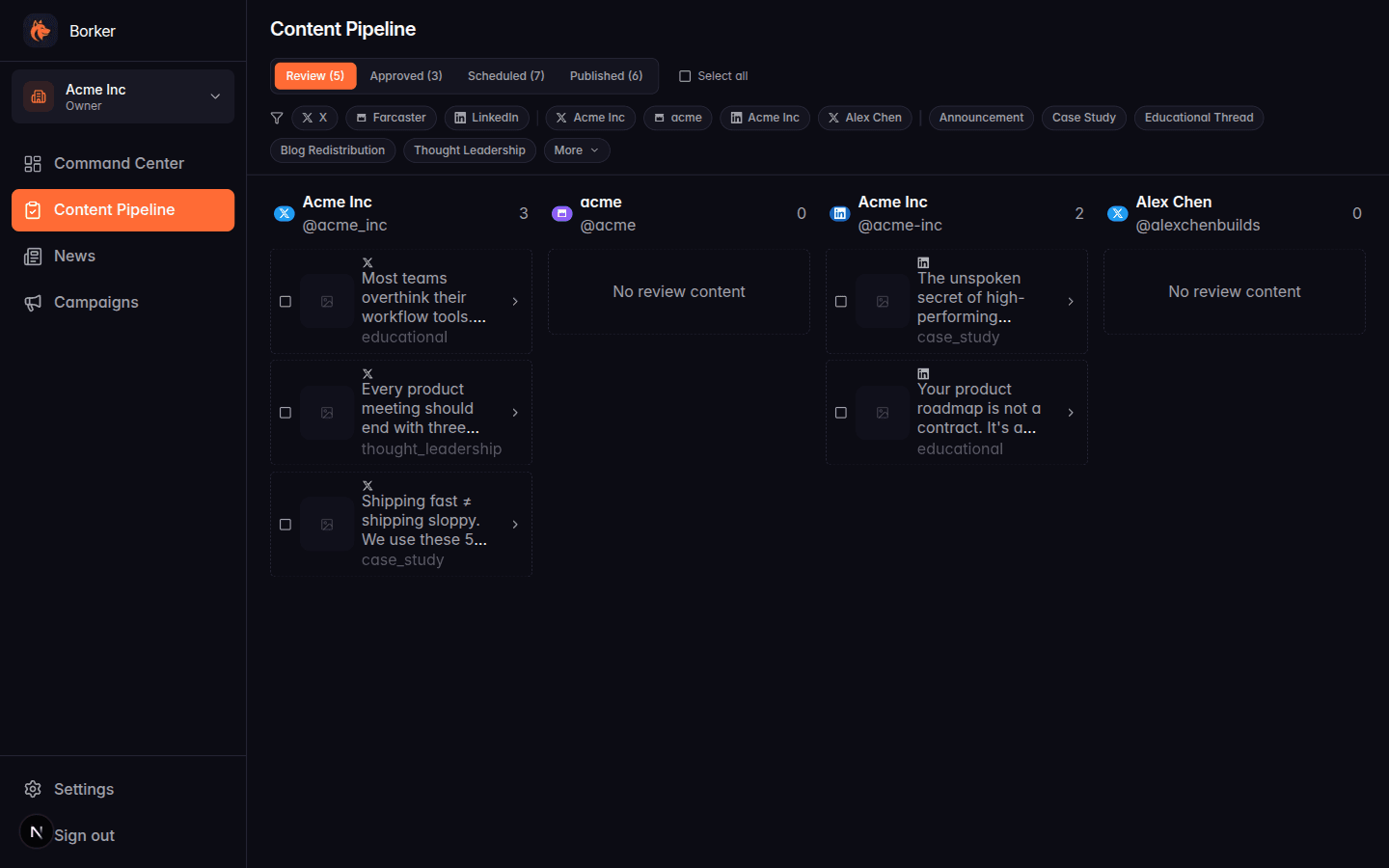
The four tabs
The Pipeline has four tabs across the top. A content item is in exactly one tab at a time.
| Tab | Status | Meaning |
|---|---|---|
| Review | draft | Fresh from the AI. Needs your approval. |
| Approved | pending (no schedule) | You approved it but didn't pick a time |
| Scheduled | pending (with schedule) | Locked and waiting to publish |
| Published | published | Already live on the platform |
Numbers in parentheses next to each tab name show the count of items in that state.
The lifecycle
Review ──approve──▶ Approved ──schedule──▶ Scheduled ──(auto)──▶ Published
  │                    │                       │
  └──reject─────┐      └──unschedule─┐          │
                ▼                    ▼          │
              delete              (back)        │
                                                │
(Scheduled items publish automatically when their time comes)- Approving something just means "I'm okay with this content." It doesn't pick a time.
- Scheduling takes an Approved item and commits it to a specific time. This is when it enters the publishing queue.
- Published items are read-only. You can't unpublish from Borker — that would require deleting on the platform itself.
Channel columns
Inside every tab, content is split into columns by channel. If you have 4 connected channels, you'll see 4 columns side by side. Each column shows a count of items for that channel in the current tab.
If a channel has no items for the current tab, you'll see "No review content" (or equivalent) in that column.
Quick actions
Each card has inline actions on hover or click:
- Review tab: Approve, Reject (delete), Edit
- Approved tab: Schedule, Unapprove (back to Review), Edit
- Scheduled tab: Unschedule (back to Approved), Edit
- Published tab: View on platform (external link)
Click any card to open the full detail modal with the content preview, scheduled time, source URL, and all edit options.
Bulk actions
The Pipeline supports multi-select. Click the checkbox on any card (or Select all in the toolbar) to start a selection. Bulk action buttons appear once you have at least one item selected.
Available bulk actions depend on the tab:
- Review: Approve selected, Delete selected
- Approved: Schedule selected, Unapprove selected, Delete selected
- Scheduled: Unschedule selected, Delete selected
Deleting is always allowed except on published items.
Filters
The filter bar below the tab row works the same as on the Command Center: platform, channel, content type, campaign, date range, media, flagged. The filter applies on top of the tab selection — e.g. "Review tab + X platform
- thought leadership type" narrows the list to just those.
Sync Channels
On the Scheduled and Published tabs you'll see a Sync Channels button. This reconciles Borker's record of scheduled posts with the publishing backend. It catches up on published posts that Borker didn't know about yet.
Run Sync Channels if:
- A post you scheduled isn't showing as published even though it went live
- A post moved to Published but you don't see it on the platform
- Things just look out of sync
Common workflows
Review and approve a batch
- Open the Review tab
- Click Select all to check everything
- Review the cards — uncheck anything you don't want
- Click Approve Selected → items move to Approved
Schedule everything at their target times
- Open the Approved tab
- Select all
- Click Schedule Selected
This uses each item's Target Date and default time (or falls back to your schedule config defaults).
Delete rejected drafts
- On the Review tab, select the drafts you don't want
- Click Delete Selected
There's no undo, but deleted drafts aren't something you'd want to recover anyway.
The Pipeline is the source of truth for all content. If you edit a post after it's been scheduled, make sure to re-save — the published version will reflect whatever's in the Pipeline at publish time.