
Command Center
The home view — timeline, calendar, stats, and the AI prompt bar.
The Command Center is Borker's main dashboard. It's what you see right after logging in: all your scheduled and published content laid out across your channels, with a prompt bar at the top for generating new content on demand.
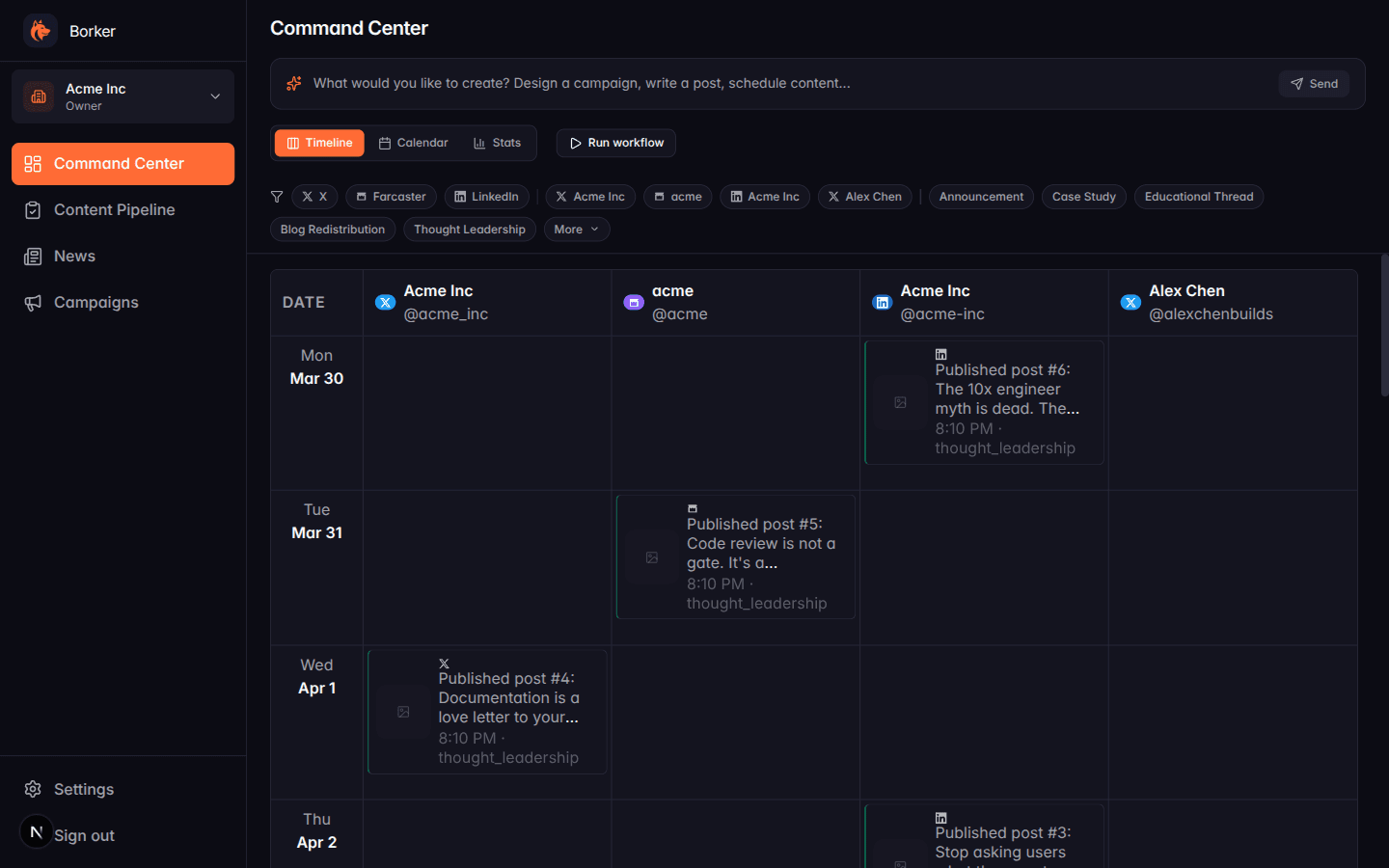
Views
Three views, same data:
- Timeline: horizontal columns, one per channel. Shows each day down the left side and all content for that day in the channel columns.
- Calendar: a classic month grid with content items as mini-cards on their scheduled day.
- Stats: aggregated metrics over time (coming soon).
Switch between them with the Timeline / Calendar / Stats buttons.
The prompt bar
The input at the top (What would you like to create?) is the fastest way
to create new content. You can type:
- "Write an X post about our new pricing" — creates a single draft
- "Design a campaign for our Q2 product launch" — kicks off the campaign designer
- "Schedule a LinkedIn post for Thursday at 9am about ..." — creates and schedules in one step
Results appear in your Pipeline under the Review tab.
Filters
The filter bar sits below the view tabs. It affects what you see in Timeline and Calendar (Stats ignores it for now).
Available filters:
| Filter | What it does |
|---|---|
| Platform | Show only X, LinkedIn, Farcaster, or Paragraph |
| Channel | Narrow to a specific account — useful when you have multiple X or LinkedIn accounts |
| Content type | Only show announcements, thought leadership, etc. |
| Campaign | Show only content from a specific campaign |
| Date range | Under "More" — filter to a window |
| Has media | Under "More" — only posts with attached images |
| Flagged | Under "More" — items marked for review |
Filters are remembered within a session but reset on reload.
Run workflow button
The orange Run workflow button next to the view tabs fires the daily workflow on demand. See Manual triggers for what it does and when to use it, and Daily generation for what it generates.
Calendar view
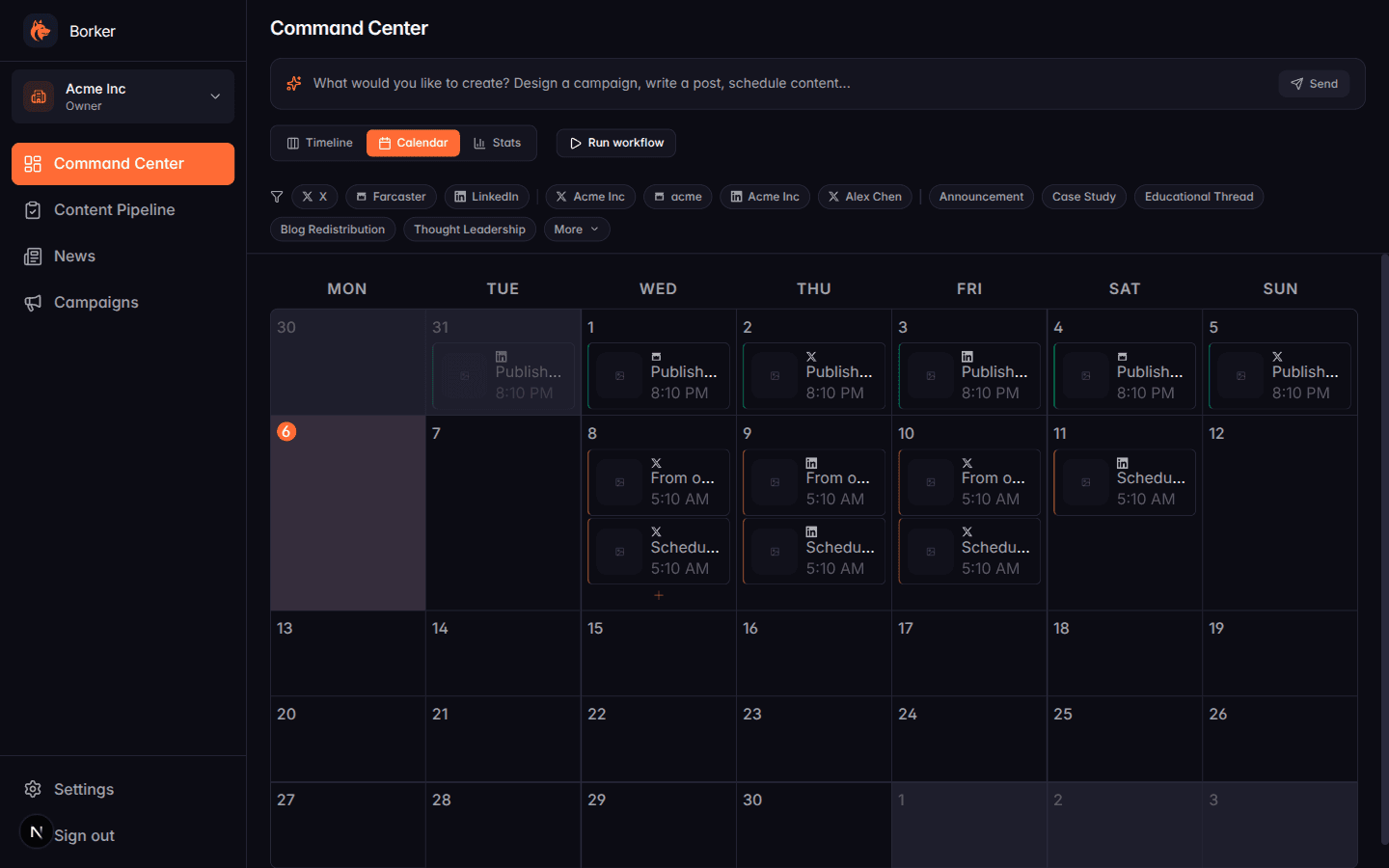
The calendar shows the current month with all your scheduled and published content. Click any item to open its full detail; click an empty day to generate something new targeted at that date.
Use the < > arrows in the header to move between months.
Empty state
On your first login there's nothing scheduled yet, so both views will be mostly empty. The fastest way to populate it is:
- Enable automation in Settings → Schedule → Workflow Automation
- Click Run workflow to trigger an immediate run
- Review and approve what it generates in the Pipeline
Or use the prompt bar to create a single piece of content right away.
The Command Center is a view layer — it never creates or modifies content directly. Everything you see came from the Pipeline. If something looks wrong here, the source of truth is the Pipeline.