
Schedule Settings
Weekly posting schedule, timing constraints, and workflow automation toggles.
Settings → Schedule is where you define when content gets posted, how frequently, and what automation runs daily.
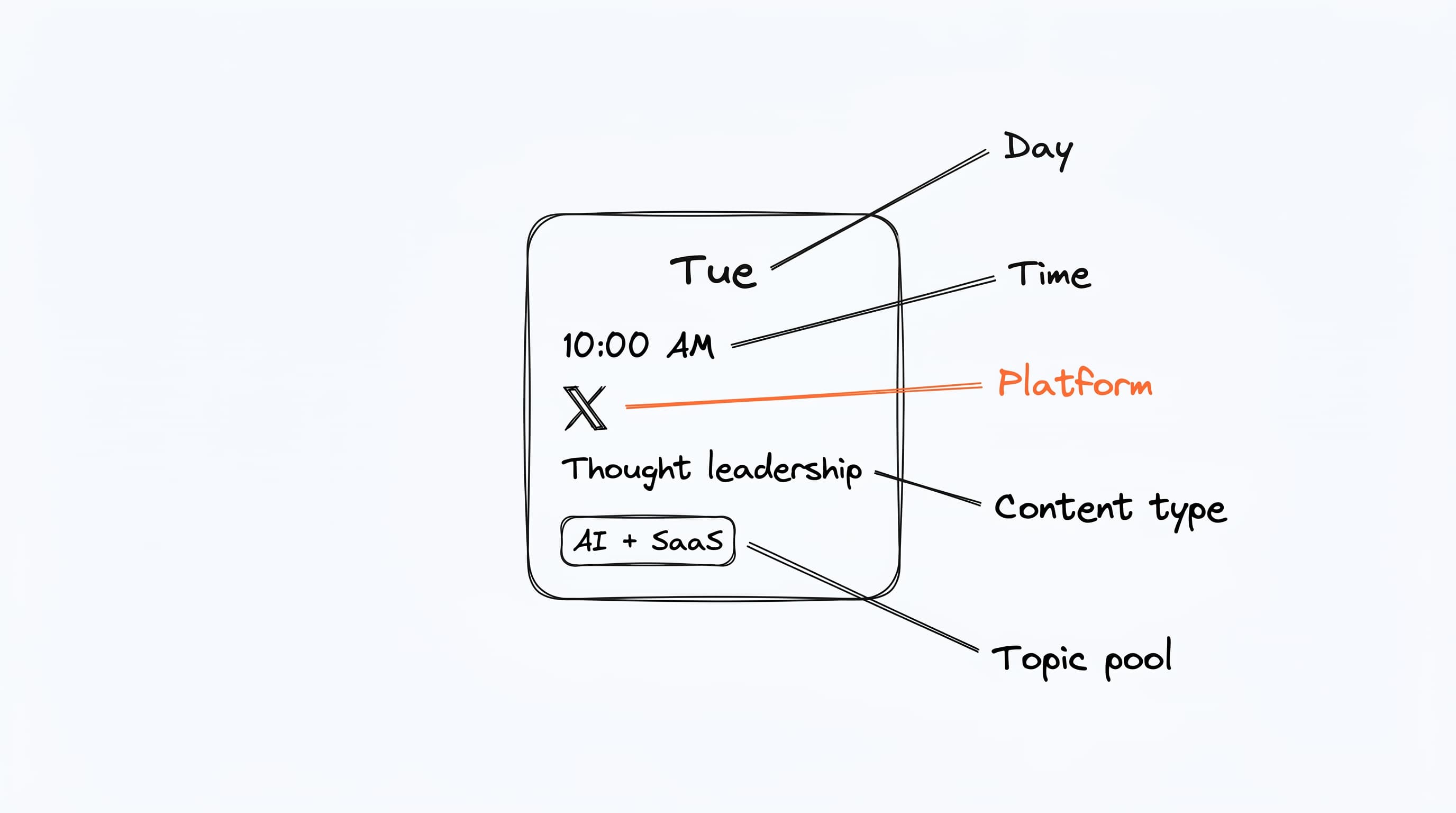
The core building block on this page is the schedule slot — a recurring weekly time bundled with the day, time, platform, content type, and topic pool it should generate for. Most users have 3 to 5 slots; the daily run produces one draft per slot scheduled for today.
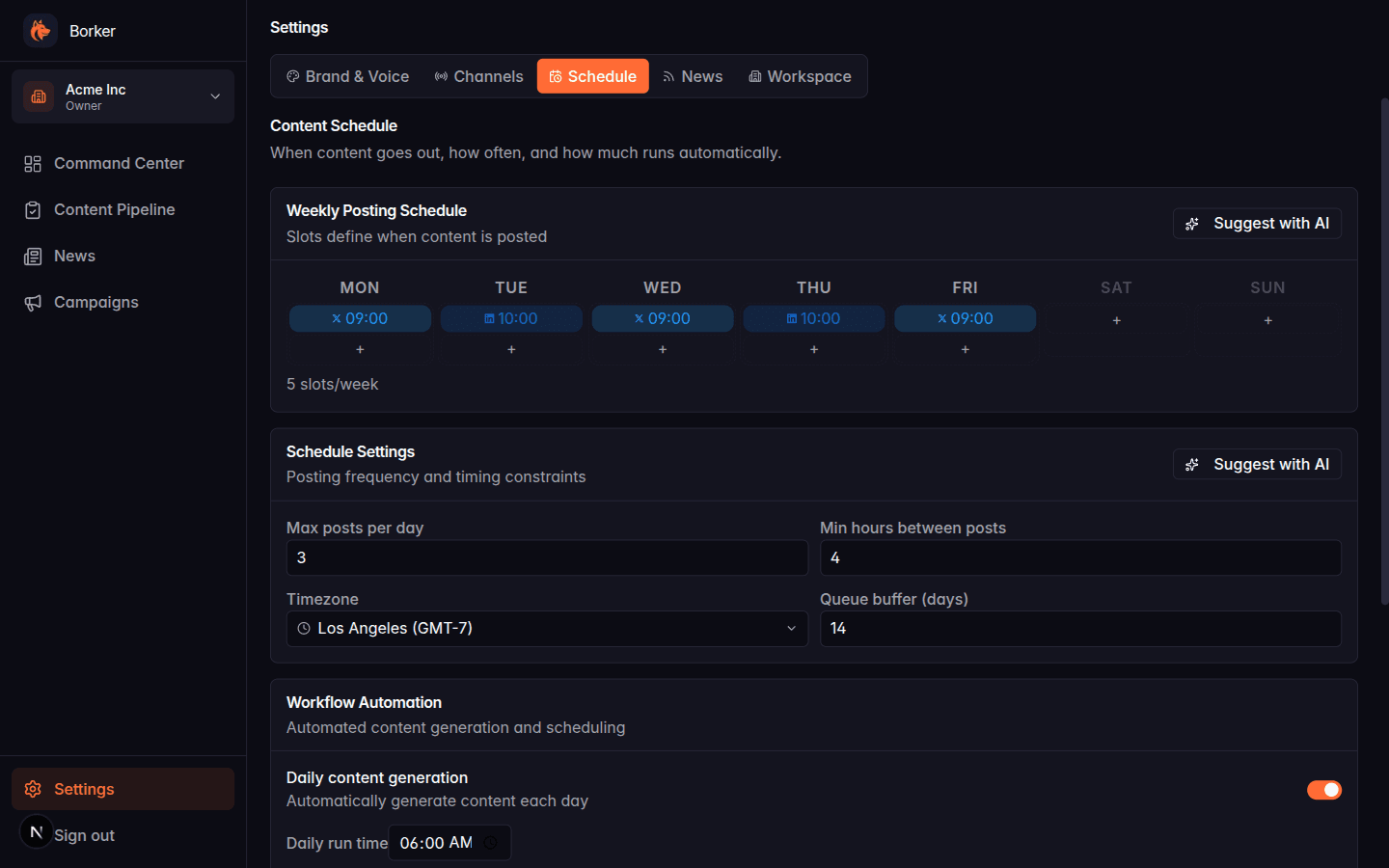
Weekly Posting Schedule
The 7-day grid at the top defines your calendar slots — recurring weekly times when the daily generation workflow produces a piece of content.
Each slot specifies:
- Day of week
- Time of day
- Platform (X, LinkedIn, Farcaster, Paragraph)
- Content type (optional — narrows what the Decision Engine picks)
Adding a slot
Click the + button in any day column. A picker opens where you choose the time, platform, and content type. Save.
Removing a slot
Click an existing slot (the chip with the platform icon and time) to remove it.
Suggest with AI
Click Suggest with AI in the top right of the grid. Claude analyzes your brand, content types, and connected channels to propose an optimal weekly schedule based on platform best practices. You can accept the whole proposal or cherry-pick slots.
Schedule Settings
Below the slot grid:
| Setting | Default | What it does |
|---|---|---|
| Max posts per day | 3 | Global cap across all automation |
| Min hours between posts | 4 | Minimum spacing on the same channel |
| Timezone | (browser default) | Workspace timezone — see Timezone |
| Queue buffer (days) | 14 | How far in advance the scheduler will queue |
Suggest with AI
Same pattern as the weekly schedule — Claude proposes reasonable defaults based on your plan and channels.
Workflow Automation
Three independent toggles control daily automation. See Workflows & Automation for what each one does.
Daily content generation
When on, runs daily at the configured Daily run time (default 6:00 AM in your workspace timezone). Uses your calendar slots and topic lists.
News-reactive posts
When on, checks your reactive feeds during the daily workflow and creates up to Max reactive posts per day (default 3) drafts from relevant articles.
Auto-redistribute blog posts
When on, finds new blog posts from your redistribute feeds (last 7 days) and generates social content for each target channel.
All three toggles are independent. You can run just daily generation, or just auto-redistribute, or all three. They all run at the same Daily run time.
Approval Mode
Below the workflow automation section, the Approval mode setting controls whether drafts go to Review or skip straight to Approved:
- Manual (default): drafts land in Review and wait for your approval
- Auto: drafts go straight to Approved
With auto-approval, you still need to schedule content — it just skips the review step. We recommend starting with Manual and switching to Auto only once you trust the AI output for your brand.