
Channels & Routing
Connected accounts, their roles, and which content gets sent where.
The Channels tab in Settings is where you manage your connected social accounts and decide which content types go to which account.
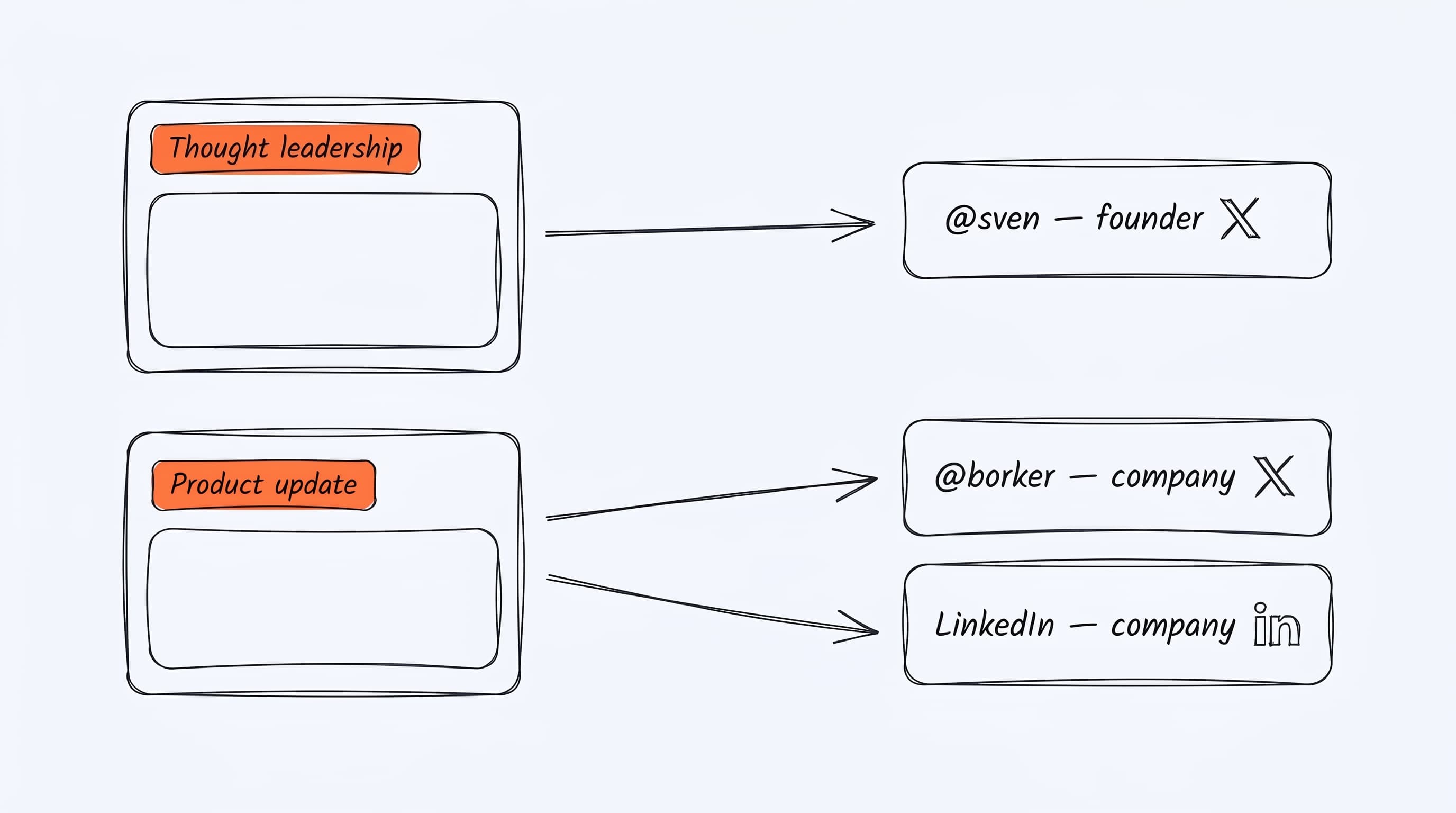
Most workspaces eventually have more than one channel per platform — say a founder X and a company X. Routing rules decide automatically: thought leadership goes to founder X, product updates to company X. Set them up once, and every future draft routes itself.
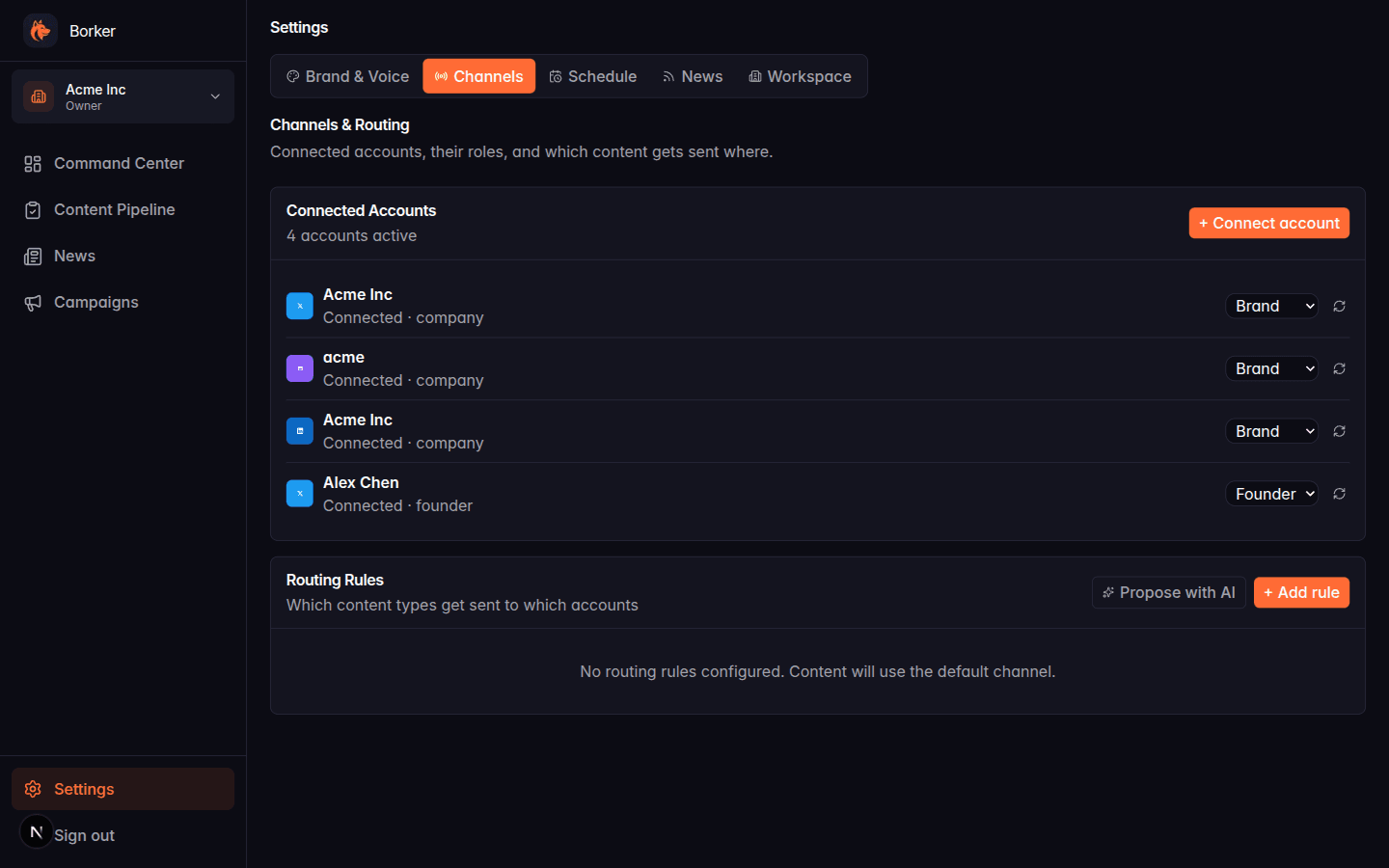
Connected accounts
Each connected channel shows:
- Platform icon (X, LinkedIn, Farcaster, Paragraph)
- Display name and handle
- Connection status (Connected / Disconnected)
- Account type: Company, Founder, or Product (see below)
The + Connect account button starts the OAuth flow for the platform you select. You authorize Borker on the platform's authorization page, and the channel appears in your list.
Account types
When you connect a channel you pick one of three account types:
| Type | Use for |
|---|---|
| Company | Your main brand account (e.g. @acme_inc) |
| Founder | A personal account where the founder posts as themselves |
| Product | A product-specific sub-brand account |
Account type affects:
- Content generation (founder posts can be more personal, company posts more formal)
- Founder reshare behavior in redistribution (a company LinkedIn post can auto-generate a founder reshare draft)
Multiple accounts on the same platform
You can connect multiple accounts per platform. For example:
- 2 X accounts:
@acme_inc(company) and@alexchen(founder) - 2 LinkedIn accounts: Company page and personal profile
Each one shows as a separate column in the Command Center timeline and the Content Pipeline.
Routing Rules
Routing rules determine which content type goes to which channel by default. Rules look like:
- Content type Announcement → send to channel Acme Inc X
- Content type Thought leadership → send to channel Alex Chen X
If no rule matches, the content goes to the default channel for that platform.
Click + Add rule to create a manual routing rule, or Propose with AI to have Claude suggest a routing scheme based on your content types and channels.
Disconnecting a channel
Click the three-dot menu on any channel and select Disconnect. This removes the channel from Borker but doesn't delete content that was previously scheduled/published through it.
Channel sync
If a scheduled post isn't appearing as published even though it went live, click Sync Channels in the Pipeline → Scheduled / Published tab header. This reconciles Borker's record with the publishing backend and catches up on any missing post statuses.
Channel publishing is fully managed inside Borker. You don't need any external dashboards or third-party accounts.