
News-Reactive Posts
Automatically generate reactive posts when relevant industry news breaks.
News-reactive automation watches your industry RSS feeds and generates draft reactive posts when articles match your relevance keywords.
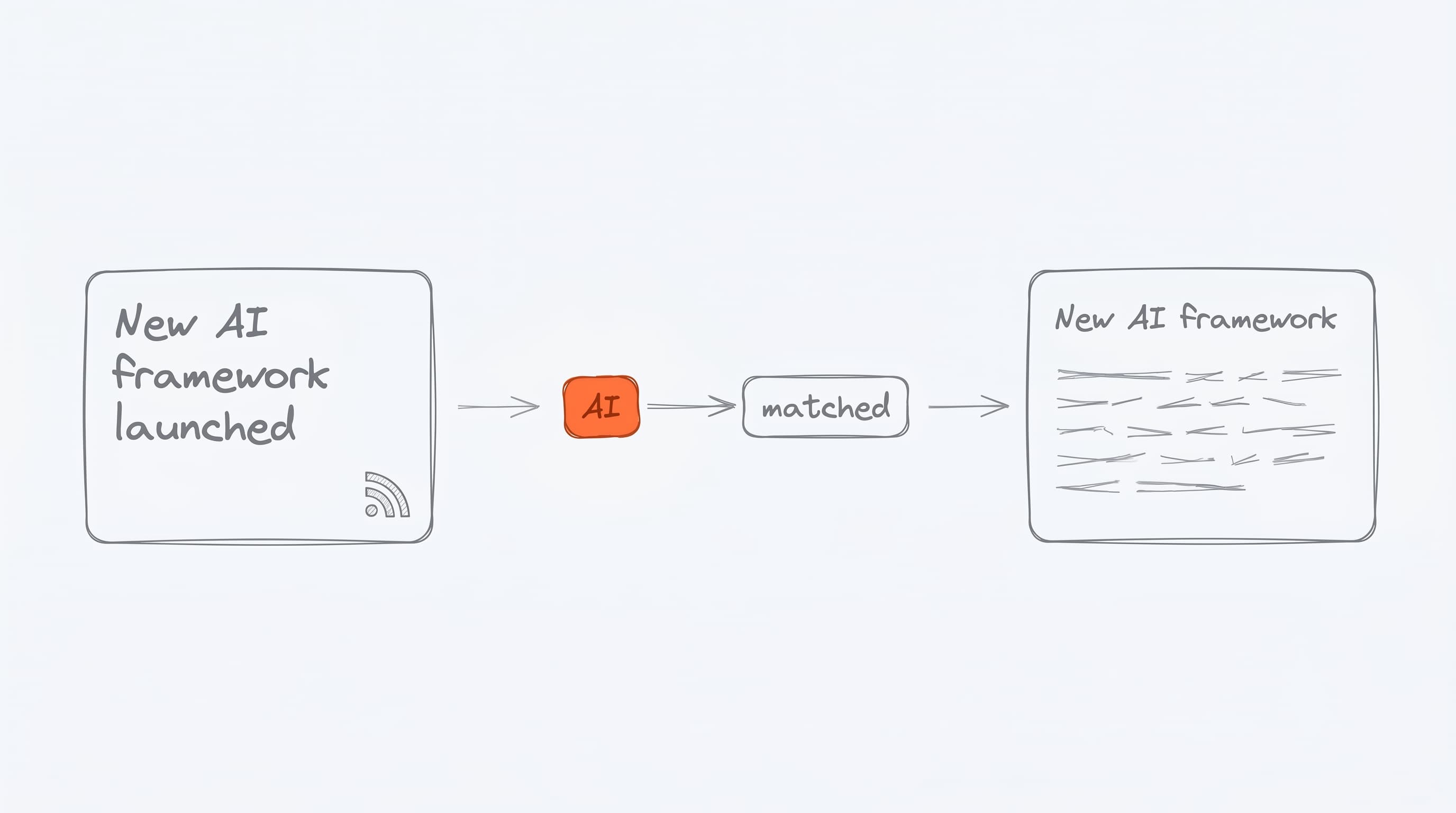
This is for the kind of post where being early matters — industry-news takes, hot-take responses, "here's what this means" commentary. Borker is watching so you don't have to scroll feeds looking for moments to react to.
Enabling it
Settings → Schedule → Workflow Automation → toggle News-reactive posts on. Then set Max reactive posts per day (default: 3) — this caps how many drafts can be created per daily run to avoid flooding your Pipeline.
What it does during a daily run
- Pulls the latest articles from all your reactive-type RSS feeds
- Scores each article against your relevance keywords
- For the top-N articles (by relevance), generates a draft reactive post
- Attaches the article URL as the draft's source link
- Marks the article as Processed in the News tab
What makes an article "reactive"
Two thresholds:
- Relevance score ≥ a minimum (calculated from keyword matches)
- Has any keyword match from your relevance keywords list
Articles that don't meet both are fetched and cached but not auto-reacted to. You can still manually create responses from them via the News tab.
Configuring which feeds
Only feeds marked as Reactive type count toward news-reactive automation. Redistribute-type feeds (your own blog) are handled separately by Auto-redistribute.
Set the type when you add a feed in Settings → News → RSS Feeds.
Configuring keywords
Your Relevance Keywords list (Settings → News → Relevance Keywords) controls what Borker considers relevant. Only articles with at least one keyword match are considered.
Good keywords are:
- Specific to your niche (e.g. "DevOps", "AI agents", not "technology")
- Action-oriented when possible ("acquired", "launched", "raised")
- 5–15 keywords, not 100
Max reactive posts per day
Even if 20 articles match your keywords in a given day, Borker will only generate drafts for the top N (default 3). This prevents your Pipeline from getting flooded during heavy news days.
Raise or lower this in Settings → Schedule → Workflow Automation.
What you see in the Pipeline
Reactive drafts appear in Pipeline → Review with:
- Content type Reactive
- A source link pointing to the article
- The article's angle as part of the content prompt context
What you see in the News tab
Every article that was used for a reactive draft moves from Pending to Processed in the News tab and shows a "Response created" badge. Clicking the article takes you to the linked content item in the Pipeline.
Dismissed articles (either manually or not picked for auto-reaction) stay in Pending until you dismiss them explicitly.
Disabling news-reactive
Toggle it off in Settings → Schedule → Workflow Automation. Existing reactive drafts stay in the Pipeline — they just stop being created.
Auto-reactive content rarely matches the quality of hand-written responses. Use this as a draft generator, not a replacement for judgment. Always review the draft before approving.